
A Zephyr Web Server on the Seeed XIAO nRF52840, over Thread (C/C++)

In an earlier guide we built a tiny web server on an ESP32-C3 in async Rust, using Embassy. A browser could connect over Wi-Fi, toggle an onboard LED, and flip the page theme. This guide builds the same idea on completely different foundations: the Zephyr RTOS, written in C, running on a Seeed Studio XIAO nRF52840. A later companion guide will return to this board and do it in Rust, so we can compare all three points of the triangle.
This is the more ambitious of the two projects, because the XIAO nRF52840 has no Wi-Fi. We will reach it over Thread, the low-power IPv6 mesh networking standard built on 802.15.4. That choice makes this exercise much more challenging and quite different to a straight port.
west sdk install. If a config option or command below does not match what you see, check your Zephyr version first: the structure of the project carries over even when the exact symbol names change. The board target used throughout is xiao_ble, which is the Seeed XIAO nRF52840 in mainline Zephyr. The Sense variant uses xiao_ble/nrf52840/sense.What is Zephyr?
The ESP32 project in my previous post used Embassy: a small async runtime that you combine with a bare-metal program. Zephyr is a different kind of thing entirely. It is a full real-time operating system (RTOS): a pre-emptive scheduler, a driver model, a networking stack, filesystems, power management, and a build system, all maintained as one large open-source project under the Linux Foundation.
A few ideas define how Zephyr works, and they are worth discussing up front because the rest of this guide leans on them:
- Pre-emptive threads, not just async. Zephyr runs real kernel threads with priorities. The scheduler can interrupt a lower-priority thread to run a higher-priority one. You still can write cooperative code, but the default model is closer to a small Linux than to a single-stack async runtime.
- Devicetree. Hardware is described in a
.dtsdata format, separate from your C code. The LED, the radio, and the pins are all nodes in a tree. Your program refers to them by alias (led0) rather than by hardcoding a pin number, which is how one application builds unchanged across hundreds of boards. The Devicetree is discussed in detail in my BeagleBone and Raspberry Pi textbooks, being present in embedded Linux for quite some time now. - Kconfig. Features are switched on and off through
CONFIG_symbols in aprj.conffile, exactly like configuring a Linux kernel. If you want TCP, or OpenThread, or a shell, you enable a symbol rather than adding a dependency. - west. Zephyr's meta-tool. It manages the source tree, builds, and flashes. You will type
west buildandwest flash(orcopy) constantly.
The value of all this machinery is its breadth, as Zephyr supports a huge range of chips and ships a maintained networking stack that already has IPv6, TCP, and Thread. The cost is a steeper learning curve, which the rest of this guide tries to assist with.
The hardware: Seeed Studio XIAO nRF52840
The XIAO nRF52840 is a thumbnail-sized board (roughly 22 mm by 17.5 mm) built around the Nordic nRF52840 system-on-chip. It is inexpensive (~ €10), widely available, and very well supported in Zephyr, which makes it a good board to learn on.
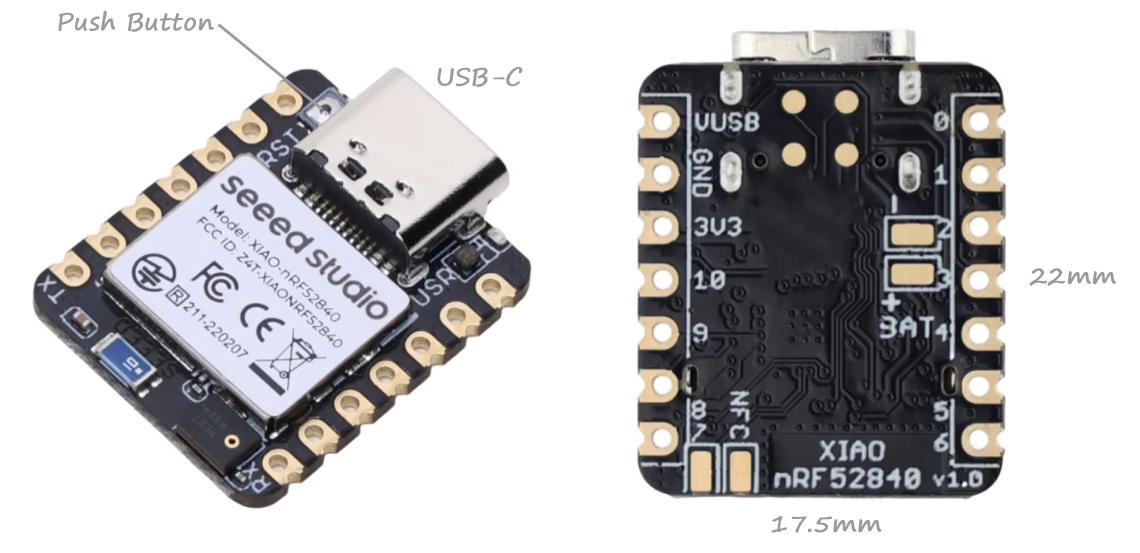
| Feature | Detail |
|---|---|
| MCU | Nordic nRF52840, Arm Cortex-M4F at 64 MHz |
| Memory | 1 MB flash, 256 KB RAM |
| Radios | Bluetooth LE 5, 802.15.4 (Thread / Zigbee), NFC |
| Wireless gap | No Wi-Fi and no Ethernet |
| USB | Native USB device controller |
| User LED | RGB LED, active-low |
| Bootloader | Adafruit UF2 (double-tap reset button in Figure 1 to flash) |
Two of these rows shape the whole project. First, the lack of Wi-Fi: the nRF52840 is a Bluetooth and 802.15.4 chip, so to build a browser-reachable web server we use Thread (more on that below). Second, the UF2 bootloader: you flash the board by double-tapping the reset button, at which point it appears as a USB mass-storage drive, and you copy a .uf2 file onto it. This is a nice feature, which means you do not need an external debug probe to get started, keeping the barrier to entry low.
GPIO_ACTIVE_LOW, so in code a logical 1 means on and a logical 0 means off, and you never think about the electrical level again. This is a simple example of devicetree doing its magic!What we are building
The goal is feature-for-feature the same as the ESP32 guide: a single-page web server that serves a small HTML page with two buttons. One button toggles the user LED on the board; the other flips the page between a dark and a light theme. The page is rendered fresh on every request to reflect the current state.
The difference is entirely in how the bytes get from your computer to the embedded board. On the ESP32 the path was browser to Wi-Fi access point to the chip. Here the path runs through a Thread mesh:
  graph LR
     B["Browser on your PC"] -->|"IPv6 over Wi-Fi / Ethernet"| R["Thread Border Router"]
     R -->|"802.15.4 / 6LoWPAN"| X["XIAO nRF52840: HTTP server + LED"]
Figure 2: a browser on your PC talks IPv6 to a Thread Border Router over your normal network, and the border router relays it over 802.15.4 to the XIAO, which runs the HTTP server and owns the LED.
The XIAO never touches your Wi-Fi directly. It joins a Thread network, receives an IPv6 address, and the border router routes traffic between your home network and the mesh. From the browser's point of view it is just another IPv6 host.
Zephyr versus Embassy: choosing your foundation
Before the setup work, it is worth being clear about why you might pick one of these over the other, because they use quite different philosophies. Neither is better; they trade against each other.
| Dimension | Zephyr (C/C++) | Embassy (async Rust) |
|---|---|---|
| Concurrency model | Pre-emptive RTOS threads, plus optional cooperative work queues | Cooperative async/await on a single stack |
| Memory safety | Manual; the usual C foot-guns apply | Enforced at compile time by the borrow checker |
| Footprint | Larger; you are linking an RTOS and a full network stack | Very small for simple apps; no OS underneath |
| Hardware breadth | Huge: hundreds of boards behind one devicetree abstraction | Growing, but per-chip HALs vary and move fast |
| Networking | Mature in-tree stack: IPv6, TCP, Thread, BLE, USB | Depends on external crates; capable but younger |
| Build system | west + CMake + Kconfig + devicetree (powerful, complex) | cargo (simple, familiar to Rust developers) |
| Maturity | Long-term support, safety certification paths, large industry backing | Younger ecosystem, smaller community, rapid change |
Zephyr Strengths. If your project needs breadth, longevity, or a feature that already exists in-tree, Zephyr is hard to beat. The Thread stack we use here is a good example: it is maintained, tested, and a single Kconfig symbol away. Zephyr's board abstraction also means the same application source can target a wildly different chip by changing one build flag. For a product that must ship, be certified, and live for a decade, that maturity matters.
Embassy Strengths. If your project is a focused, resource-constrained device and you value Rust's compile-time safety, Embassy is lighter and arguably more pleasant. There is no RTOS to learn, the async model is elegant for I/O-bound work, and the borrow checker eliminates a whole category of concurrency bugs before the program ever runs. The cost, as the ESP32 guide's repeated version caveats showed, is a faster-moving ecosystem with thinner driver coverage.
A useful way to hold the distinction: Embassy gives you concurrency by suspending tasks at .await points on one stack, while Zephyr gives you concurrency by scheduling real threads that the kernel can preempt. The ESP32 web server was one cooperative task looping forever. The Zephyr version will be a thread that the kernel schedules alongside the entire Thread networking stack running in its own threads underneath.
Prerequisite: a Thread border router
The common do-it-yourself option is the OpenThread Border Router (OTBR) running on a Raspberry Pi, paired with a second nRF52840 (a dongle or another XIAO) flashed with the Radio Co-Processor (RCP) firmware to act as the Pi's 802.15.4 radio. Commercial Thread border routers exist (many smart-home hubs are one), but most do not expose the developer access we need here.
Setting up the border router is a guide in its own right, which I have written on my site using an ESP32-C6-WROOM as an OpenThread RCP. The OpenThread documentation covers it well, so this article assumes you have a working OTBR and can read its active dataset. We will use that dataset to commission the XIAO onto the same network.
First-time Zephyr toolchain setup on Windows
Zephyr's toolchain has more moving parts than cargo, but the official path is well-covered. These steps follow Zephyr's getting-started flow for Windows; pin them against the current documentation for your version.
apt on Debian or brew on macOS. Instead of hunting down installers for CMake, Ninja, Python, and the rest, you run one choco install command and it fetches, installs, and puts each tool on your PATH for you. Zephyr's own Windows instructions rely on it precisely because the toolchain has so many separate pieces, and keeping them consistent by hand is error-prone.If you do not already have it, install it once from an elevated PowerShell window by following the official install command. You can check it is present with
choco --version. It is not the only option (Windows also ships winget, and Scoop is popular too), but Chocolatey is what the Zephyr docs assume, so it is the smoothest path here.1. Install the host dependencies
Open a PowerShell window (with elevated permissions – i.e., right-click PowerShell and "Run as Administrator") and install the build tools with Chocolatey:
choco install cmake --installargs 'ADD_CMAKE_TO_PATH=System'
choco install ninja gperf python git dtc-msys2 wget 7zip
PATH is picked up. Zephyr is sensitive to having cmake, ninja, and python all visible on the path.2. Get the Zephyr source and Python tools
Zephyr's meta-tool, west, is a Python package. Install it into a virtual environment so it does not collide with other Python projects:
PS C:\> mkdir c:\zephyr
PS C:\> cd c:\zephyr
PS C:\zephyr> python -m venv zephyrproject\.venv
PS C:\zephyr> zephyrproject\.venv\Scripts\Activate.ps1
(.venv) PS C:\zephyr> pip install west
While you are here in Windows as administrator, it is a good time to fix a quirk with Windows path length limits. When the Microsoft C compiler (MSVC) tries to generate intermediate build files inside this deeply nested folder later in this section, the file path exceeds the legacy Windows 260-character limit, causing the compiler to choke and output that weird '' empty file name error. We can address this now.
PS C:\WINDOWS\system32> New-ItemProperty -Path "HKLM:\SYSTEM\CurrentControlSet\Control\FileSystem" -Name "LongPathsEnabled" -Value 1 -PropertyType DWORD -Force

LongPathsEnabled : 1
PSPath           : Microsoft.PowerShell.Core\Registry::HKEY_LOCAL_MACHINE\SYSTEM\CurrentControlSet\Control\FileSystem
PSParentPath     : Microsoft.PowerShell.Core\Registry::HKEY_LOCAL_MACHINE\SYSTEM\CurrentControlSet\Control
PSChildName      : FileSystem
PSDrive          : HKLM
PSProvider       : Microsoft.PowerShell.Core\Registry
$HOME, or $env:HOMEPATH, or ~) rather than the cmd-style %HOMEPATH%, which PowerShell does not expand. Likewise the venv is activated with Activate.ps1 in PowerShell; the activate.bat form is for a cmd prompt. If you would rather use cmd throughout, %HOMEPATH% and activate.bat are the correct choices there instead.With west installed, pull down the Zephyr tree and its dependencies:
(.venv) PS C:\zephyr> west init zephyrproject
=== Initializing in C:\zephyr\zephyrproject
--- Cloning manifest repository from https://github.com/zephyrproject-rtos/zephyr
Cloning into 'C:\zephyr\zephyrproject\.west\manifest-tmp'...
remote: Enumerating objects: 1558369, done.
remote: Counting objects: 100% (1369/1369), done.
...
--- setting manifest.path to zephyr
=== Initialized. Now run "west update" inside C:\zephyr\zephyrproject.

(.venv) PS C:\zephyr> cd zephyrproject
(.venv) PS C:\zephyr\zephyrproject> west update
(.venv) PS C:\zephyr\zephyrproject> pip install -r zephyr\scripts\requirements.txt
(.venv) PS C:\zephyr\zephyrproject> west zephyr-export

Zephyr (C:/zephyr/zephyrproject/zephyr/share/zephyr-package/cmake)
has been added to the user package registry in:
HKEY_CURRENT_USER\Software\Kitware\CMake\Packages\Zephyr
...
west update clones Zephyr's many module repositories (including OpenThread), so it takes a while and downloads a few hundred megabytes the first time.
3. Install the Zephyr SDK
The SDK provides the cross-compilers (here, the Arm toolchain that targets the Cortex-M4 in the nRF52840):
(.venv) PS C:\zephyr> west sdk install --install-dir C:\zephyr\zephyr-sdk
That installs the full SDK. If you want to keep the download smaller you can pass -t arm-zephyr-eabi to fetch only the Arm toolchain, which is all this board needs.
zephyrproject\.venv\Scripts\Activate.ps1 in PowerShell, or activate.bat in cmd) and change into the zephyrproject directory. A common first-time frustration is west not being found, which almost always means the venv is not active.Creating the Zephyr project
A Zephyr application is a directory with three things: a CMakeLists.txt, a prj.conf, and your source. Create it as a sibling of zephyr inside your workspace, for example zephyrproject\een-zephyr-web.
(.venv) PS C:\zephyr\zephyrproject> mkdir een-zephyr-web
(.venv) PS C:\zephyr\zephyrproject> cd .\een-zephyr-web\
Now create the three following files in this directory:
Build Configuration (CMakeLists.txt)
cmake_minimum_required(VERSION 3.20.0)
find_package(Zephyr REQUIRED HINTS $ENV{ZEPHYR_BASE})
project(een_zephyr_web)

target_sources(app PRIVATE src/main.c)
Project Configuration (prj.conf)
This file is where most of the work happens. Each symbol switches on a slice of Zephyr. The comments explain why each is needed for our web server example:
# --- Networking core ---
CONFIG_NETWORKING=y
CONFIG_NET_IPV6=y
CONFIG_NET_TCP=y
CONFIG_NET_SOCKETS=y
CONFIG_POSIX_API=y          # gives us the familiar BSD socket() / bind() names

# --- Non-Volatile Storage (Required for OpenThread) ---
CONFIG_FLASH=y
CONFIG_FLASH_MAP=y
CONFIG_NVS=y
CONFIG_SETTINGS=y
CONFIG_SETTINGS_NVS=y

# --- 802.15.4 + Thread ---
CONFIG_NET_L2_OPENTHREAD=y  # run the OpenThread stack as the network link layer
CONFIG_OPENTHREAD_FTD=y     # Full Thread Device: routes for others, stays awake

# --- Shell, so we can commission onto the Thread network at runtime ---
CONFIG_SHELL=y
CONFIG_OPENTHREAD_SHELL=y
CONFIG_NET_SHELL=y

# --- Hardware we touch ---
CONFIG_GPIO=y               # for the LED

# --- Diagnostics ---
CONFIG_LOG=y

# --- Headroom: the Thread stack and TCP need RAM ---
CONFIG_MAIN_STACK_SIZE=4096
CONFIG_HEAP_MEM_POOL_SIZE=16384

# --- Shell paste headroom: the Thread dataset is a long single line ---
CONFIG_SHELL_CMD_BUFF_SIZE=512
CONFIG_SHELL_BACKEND_SERIAL_RX_RING_BUFFER_SIZE=512

# --- Give the device a routable (OMR) address via SLAAC ---
CONFIG_OPENTHREAD_SLAAC=y
CONFIG_MAIN_STACK_SIZE. Tuning these is a normal part of Zephyr work.The web server (src/main.c)
The third file is in a new src sub directory. Here is src/main.c. It mirrors the structure of the ESP32 program deliberately: configure the LED, open a listening socket, then loop forever accepting one client at a time, reading the request, updating state, rendering a page, and closing. The comments carry the detail.
nano, PuTTY, or anything that wraps or truncates long lines: a string literal that gets split across two physical lines is a compile error (missing terminating " character). Save it with a real editor (VS Code) or write it to disk directly, and confirm the file is intact afterwards. Check that render_page appears exactly once and the file should end with main()'s closing brace.// src/main.c
// A minimal HTTP/1.0 server on Zephyr for the XIAO nRF52840.
// Serves one client at a time over the Thread (IPv6) network: toggles the
// user LED and flips a page theme, exactly like the ESP32-C3 example.
//
// LEARNING NOTES
// --------------
// Zephyr is a small real-time operating system (RTOS): instead of the single
// super-loop of bare-metal Arduino code, your program runs as one or more
// "threads" scheduled by a kernel, alongside the kernel's own threads (e.g. the
// networking stack). This file is one such application thread: the main().
//
// Thread (capital T, the networking protocol) is a low-power IPv6 mesh network
// built on 802.15.4 radios. Every node gets real IPv6 addresses and speaks
// standard IP, so from this program's point of view the network is "just
// sockets" -- the same BSD-style API you would use on Linux. The mesh, routing,
// and radio work all happen in Zephyr's networking threads underneath us.
//
// Two Zephyr ideas appear again and again below:
// * Devicetree -- hardware (the LED pin, the radio) is described in .dts/.overlay
// files, and the code refers to it by name rather than by raw register/pin
// numbers. See the GPIO_DT_SPEC_GET line.
// * Kconfig -- features (networking, Thread/OpenThread, logging, socket
// API) are switched on in prj.conf. If a CONFIG_* option is off, the matching
// code will not link. This file assumes the net + OpenThread + socket options
// are enabled.
#include <zephyr/kernel.h> // core RTOS: threads, printk(), the main() entry
#include <zephyr/logging/log.h> // structured logging subsystem (LOG_INF/WRN/ERR)
#include <zephyr/drivers/gpio.h> // GPIO driver API + devicetree GPIO helpers
#include <zephyr/net/socket.h> // Zephyr's BSD-style socket API (zsock_* calls)
#include <string.h>
#include <stdio.h>
// Register a logging module named "web". Zephyr routes LOG_INF/WRN/ERR calls
// through a background logging thread so that logging never blocks your code,
// and the level (here INF) can be raised or lowered per-module in Kconfig.
LOG_MODULE_REGISTER(web, LOG_LEVEL_INF);
#define HTTP_PORT 80
// Grab the user LED from the board devicetree by its alias. This is the core
// Zephyr devicetree pattern: led0 is an *alias* defined in the board's .dts,
// pointing at a real GPIO node; GPIO_DT_SPEC_GET resolves it at compile time
// into a struct holding the port, pin number, and flags. The devicetree flags
// include GPIO_ACTIVE_LOW, so a logical 1 means ON and we never have to think
// about the electrical level -- change boards and only the devicetree changes,
// not this code.
static const struct gpio_dt_spec led = GPIO_DT_SPEC_GET(DT_ALIAS(led0), gpios);
// Server-side state, shared across every client (one LED, one theme), just as
// in the ESP32 version. Because we handle exactly one client at a time in the
// main thread (see the accept loop), these need no locking; if you fanned out
// to multiple worker threads you would have to protect them with a mutex.
static bool led_on;
static bool dark = true;
// Render the page reflecting current state into buf. Returns the body length.
static int render_page(char *buf, size_t len)
{
const char *state = led_on ? "ON" : "OFF";
const char *action = led_on ? "Turn OFF" : "Turn ON";
const char *theme = dark ? "dark" : "light";
const char *theme_action = dark ? "Light mode" : "Dark mode";
return snprintf(buf, len,
"<!DOCTYPE html><html data-theme=\"%s\"><head>"
"<meta name=\"viewport\" content=\"width=device-width, initial-scale=1\">"
"<title>XIAO nRF52840</title>"
"<link rel=\"stylesheet\" href=\"https://derekmolloy.ie/assets/built/theme.css\">"
"</head><body class=\"dm\">"
"<h1>Hello from Zephyr on the XIAO nRF52840</h1>"
"<p>User LED is currently <b>%s</b>.</p>"
"<form action=\"/toggle\" method=\"get\">"
"<button type=\"submit\" style=\"font-size:1.5rem;padding:0.6rem 1.4rem\">%s</button>"
"</form>"
"<form action=\"/theme\" method=\"get\">"
"<button type=\"submit\" style=\"font-size:1.5rem;padding:0.6rem 1.4rem;margin-top:0.6rem\">%s</button>"
"</form>"
"<p>Served by Zephyr over Thread. See ["
"<a href=\"https://derekmolloy.ie/\">derekmolloy.ie</a>]</p>"
"</body></html>",
theme, state, action, theme_action);
}
// Send the whole buffer, looping because a single send() may be partial.
// This is standard TCP socket discipline, not Zephyr-specific: zsock_send()
// (Zephyr's send()) can accept fewer bytes than asked, so we resend from where
// it left off until everything is out. zsock_* is simply Zephyr's namespaced
// version of the POSIX socket calls.
static int send_all(int sock, const char *data, size_t len)
{
size_t sent = 0;
while (sent < len) {
int n = zsock_send(sock, data + sent, len - sent, 0);
if (n < 0) {
return -1;
}
sent += n;
}
return 0;
}
// Handle a single connected client: read the request, route, respond, close.
static void handle_client(int client)
{
// static keeps these buffers out of the thread's stack. Embedded threads
// in Zephyr have small, fixed stacks (set via CONFIG_MAIN_STACK_SIZE), and
// 2 KB+ of local arrays could overflow it. Static storage is safe here only
// because a single thread ever runs this function at a time.
static char req[1024];
static char body[1024];
static char header[128];
// Read until the blank line that ends the HTTP headers. A GET has no body.
// zsock_recv() blocks this thread until bytes arrive; meanwhile the kernel
// keeps running the Thread networking threads that are feeding us those bytes.
int len = 0;
while (len < (int)sizeof(req) - 1) {
int n = zsock_recv(client, req + len, sizeof(req) - 1 - len, 0);
if (n <= 0) {
break;
}
len += n;
req[len] = '\0';
if (strstr(req, "\r\n\r\n")) {
break;
}
}
// Minimal HTTP parsing -- we do NOT use a full HTTP library here so you can
// see exactly what a request is: a plain-text line. The request line looks
// like "GET /toggle HTTP/1.1". Pull out the path: skip the method, then cut
// the path at the first space or '?'.
const char *path = "/";
char *first_space = strchr(req, ' ');
if (first_space) {
path = first_space + 1;
char *end = strpbrk((char *)path, " ?");
if (end) {
*end = '\0';
}
}
// Routing: one action per path, mirroring the ESP32 match arms.
if (strcmp(path, "/toggle") == 0) {
led_on = !led_on;
} else if (strcmp(path, "/on") == 0) {
led_on = true;
} else if (strcmp(path, "/off") == 0) {
led_on = false;
} else if (strcmp(path, "/theme") == 0) {
dark = !dark;
}
// Drive the physical pin to match our logical state. Because the devicetree
// marked this pin GPIO_ACTIVE_LOW, passing 1 here means "logically on" and
// Zephyr inverts it to the correct electrical level for us.
gpio_pin_set_dt(&led, led_on ? 1 : 0);
// Render the page, build a tiny HTTP/1.0 response, send header then body.
int body_len = render_page(body, sizeof(body));
int header_len = snprintf(header, sizeof(header),
"HTTP/1.0 200 OK\r\nContent-Type: text/html\r\n"
"Content-Length: %d\r\nConnection: close\r\n\r\n", body_len);
if (send_all(client, header, header_len) == 0) {
send_all(client, body, body_len);
}
zsock_close(client);
}
// main() runs as its own Zephyr thread, started automatically by the kernel
// after boot. We do NOT bring up the Thread network here: with the OpenThread
// options enabled in Kconfig, Zephyr joins the mesh and configures IPv6
// addresses on its own in the background before main() even runs. So by the
// time we reach the socket calls below, the node already has a working IPv6
// stack -- we just use it.
int main(void)
{
// printk() is the low-level, always-available console print (distinct from
// the LOG_* macros, which go through the logging subsystem). Handy for the
// very first "did we boot?" messages before anything else is set up.
printk("=== web server main() starting ===\n");
// Bring up the LED. gpio_is_ready_dt guards against a missing devicetree
// node (the driver may not have initialised, or the alias may be absent);
// GPIO_OUTPUT_INACTIVE configures the pin as an output in the logical-off
// state. Always check *_is_ready_dt before touching a device in Zephyr.
if (!gpio_is_ready_dt(&led)) {
LOG_ERR("LED device not ready");
return 0;
}
gpio_pin_configure_dt(&led, GPIO_OUTPUT_INACTIVE);
// Open an IPv6 TCP socket and listen on port 80. AF_INET6 because Thread is
// an IPv6-only network. Binding to in6addr_any (the "::" address) accepts
// connections on whichever Thread-assigned IPv6 address the node ends up
// with, so we don't have to hard-code it.
int serv = zsock_socket(AF_INET6, SOCK_STREAM, IPPROTO_TCP);
if (serv < 0) {
LOG_ERR("Failed to create socket");
return 0;
}
// Fill in the address to bind to. htons() converts the port to network
// byte order (big-endian) -- required even on little-endian MCUs like the
// nRF52840, and a classic beginner gotcha if you forget it.
struct sockaddr_in6 addr = {
.sin6_family = AF_INET6,
.sin6_addr = IN6ADDR_ANY_INIT,
.sin6_port = htons(HTTP_PORT),
};
if (zsock_bind(serv, (struct sockaddr *)&addr, sizeof(addr)) < 0) {
LOG_ERR("bind() failed");
return 0;
}
// Mark the socket passive so it can accept connections. The backlog of 2 is
// the queue of pending connections; small is fine here since we serve one
// client at a time.
if (zsock_listen(serv, 2) < 0) {
LOG_ERR("listen() failed");
return 0;
}
printk("=== HTTP server listening on port 80 ===\n");
LOG_INF("HTTP server listening on [::]:%d", HTTP_PORT);
// Accept one client at a time, forever. zsock_accept() blocks this thread
// until a browser connects; while we are parked here the kernel keeps the
// Thread mesh, radio, and IP stack alive in their own threads, so the node
// stays on the network even when our code is "doing nothing". This blocking,
// one-thread-per-loop style is easy to read but only serves one client at a
// time -- a real server would hand each client off to a worker thread.
while (1) {
int client = zsock_accept(serv, NULL, NULL);
if (client < 0) {
LOG_WRN("accept() failed");
continue;
}
handle_client(client);
}
return 0;
}
zsock_ prefixes? With CONFIG_POSIX_API=y you can write plain socket(), bind(), and so on. The zsock_-prefixed names are the underlying Zephyr calls, used here to be explicit and to avoid any clash with other POSIX headers. Either style works; pick one and stay consistent.At this point, my project looks like:
PS C:\zephyr\zephyrproject> tree /F .\een-zephyr-web\
Folder PATH listing
Volume serial number is 00000167 D2E8:0917
C:\ZEPHYR\ZEPHYRPROJECT\EEN-ZEPHYR-WEB
│   CMakeLists.txt
│   prj.conf
│
└───src
        main.c
Building and flashing
From your activated environment, inside zephyrproject, build for the XIAO and produce the UF2 image:
(.venv) PS C:\zephyr\zephyrproject> west build -b xiao_ble een-zephyr-web
-- west build: generating a build system
Loading Zephyr default modules (Zephyr base).
-- Application: C:/zephyr/zephyrproject/een-zephyr-web
-- CMake version: 4.3.4
...
Generating files from C:/zephyr/zephyrproject/build/zephyr/zephyr.elf for board: xiao_ble/nrf52840
Converted to uf2, output size: 785408, start address: 0x27000
Wrote 785408 bytes to zephyr.uf2
To flash, put the board into its bootloader by double-tapping the reset button. It mounts as a USB drive (named something like XIAO-SENSE, or XIAO-BOOT on the non-Sense board). Copy the built image onto it:
(.venv) PS C:\zephyr\zephyrproject> copy .\build\zephyr\zephyr.uf2 I:\
Replace I:\ with whatever drive letter the board's bootloader drive is given. You will see the file begin to appear on the drive, and then the board reboots automatically into the new firmware once the copy completes.
Double-tap it with your finger nail like a mouse double-click: two quick presses. Getting the timing right is difficult, so if nothing happens, try again a little faster or a little slower. You know it worked when the small onboard LED starts slowly pulsing (a "breathing" effect) and the
XIAO-SENSE drive appears with a Windows alert. If the button is impossible to press cleanly, the electrical equivalent is to short the RST pad to GND twice in quick succession (check your board's pinout for the pad locations first).west build complains it cannot find a board called xiao_ble, your Zephyr tree predates its support or your environment is not pointed at the right Zephyr. Confirm with west boards | findstr xiao.Joining the Thread network
The firmware is running, but the XIAO is not yet on your Thread network. To commission it you need to reach the Zephyr shell we enabled in prj.conf, which is exposed over the board's USB CDC-ACM serial port. So the first job is to open a serial terminal to the board.
Opening a serial terminal to the board
Because the XIAO presents a native USB serial device, the same USB-C cable you flashed with also carries the shell: there is no separate UART adapter to wire up. When the firmware boots, the board enumerates as a virtual COM port on Windows (something like COM7). You can find the exact number in Device Manager → Ports (COM & LPT), where it appears as a USB Serial Device; unplugging and re-plugging the board shows you which entry it is.
Any serial terminal program will do. On Windows the usual choices are PuTTY or Tera Term, and the Arduino IDE or VS Code serial monitors work equally well. Point your terminal at that COM port with these settings:
| Setting | Value |
|---|---|
| Speed (baud) | 115200 |
| Data bits | 8 |
| Parity | None |
| Stop bits | 1 |
| Flow control | None |
This is the familiar 115200 8N1, no flow control, which is the Zephyr shell default. As an example, the equivalent PuTTY launch from the command line is:
putty -serial COM7 -sercfg 115200,8,n,1,N
115200 keeps you consistent with the rest of the Zephyr documentation, but almost any value connects. What matters far more is picking the correct COM port.Once connected, press Enter and you should see the shell prompt:
uart:~$
If you see nothing, press Enter again or tap the reset button once to reboot the firmware (a normal single tap, not the double-tap that enters the bootloader) and watch the boot log scroll past. The shell supports Tab completion and command history, so typing ot then Tab lists the OpenThread subcommands, which is handy for exploring beyond the few used below.
A single tap of the reset button reboots the firmware and prints a short banner. On a healthy board it looks like this:
*** Booting Zephyr OS build v4.4.0-7043-g777ab585520e ***
[00:00:00.457,519] <inf> udc_nrf: Initialized
WARNING: Using a potentially insecure PSA ITS encryption key provider.
[00:00:00.457,824] <wrn> secure_storage: Using a potentially insecure PSA ITS encryption key provider.
=== web server main() starting ===
=== HTTP server listening on port 80 ===
[00:00:00.458,190] <inf> web: HTTP server listening on [::]:80
[00:00:00.461,791] <inf> udc_nrf: SUSPEND state detected
[00:00:00.563,110] <inf> udc_nrf: Reset
[00:00:00.563,171] <inf> udc_nrf: RESUMING from suspend
[00:00:00.611,785] <inf> udc_nrf: Reset
It is worth knowing what each part is:
*** Booting Zephyr OS build … ***is the kernel banner, printed byprintkbefore anything else. Thev4.4.0-…string is the exact Zephyr revision you built against, which is handy to quote if you ever compare notes or file a bug.[00:00:00.457,519] <inf> udc_nrf: …lines are timestamped log messages (seconds.milliseconds,microsecondssince boot).udc_nrfis the USB device controller bringing up the CDC-ACM serial port you are reading this on; theSUSPEND/Reset/RESUMINGchatter is just the USB link enumerating with the host and is entirely normal.- The
secure_storagewarning about "a potentially insecure PSA ITS encryption key provider" is expected on this board. It means the settings store (where the Thread dataset is kept) is not protected by a hardware-backed key. For a hobby project on your own network that is fine; it is Zephyr reminding you not to ship a product this way. === web server main() starting ===and=== HTTP server listening on port 80 ===are our ownprintkmarkers frommain.c. Seeing both is the proof that the application actually ran and the listening socket was created — the single most useful line to look for when the browser cannot connect (see the troubleshooting later). The line immediately below,<inf> web: HTTP server listening on [::]:80, is the same milestone emitted through the logging system by ourLOG_MODULE_REGISTER(web, …)module.- The log messages and the plain
printkmarkers can interleave in either order, becauseprintkwrites immediately while the log subsystem processes its queue slightly later. That is why the two=== … ===lines can appear just above the matching<inf> web:line rather than exactly where you might expect.
Commissioning onto the network
With the shell open, commission the board using the dataset from your border router.
On the border router, read its active operational dataset as hex. If your border router is the OpenThread Border Router from the companion guide, read it from the container:
docker exec -it otbr ot-ctl dataset active -x
On a stand-alone OpenThread node the command is the same, without the ot-ctl wrapper:
> dataset active -x
000300000c0102f095...   (one long hex string)
Then, in the XIAO's Zephyr shell, apply that dataset, bring the interface up, and start Thread:
uart:~$ ot dataset set active 000300000c0102f095...
Done
uart:~$ ot ifconfig up
Done
uart:~$ ot thread start
Done
Do the first step very carefully. I found it best to break the hex string into four parts and paste them one after the other.
shell_uart: RX ring buffer full warnings, the paste outran the receive buffer and the dataset is now corrupt. The CONFIG_SHELL_* buffer sizes we added to prj.conf largely fix this; if it still happens, use Tera Term with a small transmit delay (Setup → Serial port → about 1 msec/char), or paste the hex in shorter chunks.Type the command, paste only the hex. Type ot dataset set active by hand and paste just the hex onto the end. That keeps the fragile bytes in one place and stops a dropped character from mangling the command word itself. A mistyped word gives Error 35: InvalidCommand (the parser rejected the command, for example datset instead of dataset), which is a different failure from Error 7: InvalidArgs (the hex itself was bad).Always verify the dataset landed intact before trusting it. Print it back and check it matches the border router's, character for character (the full value is here for reference):
uart:~$ ot dataset active -x
000300000c0102f095020879662de063397cca0e080000630df03ba0d50510670d7590b4fb620c934464c639e1669b030d4e4553542d50414e2d463039350708fda5600f64860000041015d9ae97a0c61983e80b805e9a7458080c0402a0f77835060004001fffe0
Done
After a few seconds, check that the device has joined and list its addresses:
uart:~$ ot state
router
Done
uart:~$ ot ipaddr
fd5c:2f13:2208:1:1e70:3842:fd96:4248
fda5:600f:6486:0:0:ff:fe00:a800
fda5:600f:6486:0:ab3b:f7a5:f9e1:ca15
fe80:0:0:0:e05b:494c:6b17:b7f9
Done
ot state should settle on child or router within a few seconds. If it stays detached, the dataset is wrong or the radio cannot hear the border router
ot parent, and what your role tells you ot parent prints the router your node is attached to as a child, including the link-quality figures for that uplink, which makes it the natural way to judge signal strength. But it only works when the node actually has a parent: run it on a router or leader and you get Error 13: InvalidState, because those roles sit at or near the top of the mesh and have no parent. So the command failing is itself a clue about your role.Watch
ot state closely. child is healthy and expected for a leaf device, and router is fine too. But if a device that should be a leaf becomes leader (and you see the leader anycast address …:0:0:ff:fe00:fc00 appear in ot ipaddr) it has almost certainly formed its own single-node partition after losing contact with the rest of the mesh. Same credentials, different partition, so your border router is no longer in the same network and the device is unreachable. Confirm by comparing the Partition ID from ot leaderdata against the border router's ot-ctl leaderdata, and with ot router table (an isolated node lists only itself). This is the range problem in its most extreme form, and the fix is physical: move the device closer or add a router between it and the border router. For a router or leader (which have no parent), gauge links with ot neighbor table and ot router table (RSSI and LQ In/Out) rather than ot parent.Reading link quality: ot neighbor table and ot router table
For a node that is a router or leader, these two tables are how you judge radio health. Here is the XIAO once it had rejoined the real mesh (a router again, not an isolated leader):
uart:~$ ot neighbor table
| Role | RLOC16 | Age | Avg RSSI | Last RSSI | LQ In |R|D|N| Extended MAC     | Version |
+------+--------+-----+----------+-----------+-------+-+-+-+------------------+---------+
|   C  | 0xa801 |   7 |      -74 |       -76 |     3 |0|0|0| 5e81111aa76aea2a |       4 |
|   R  | 0x0400 |  39 |      -86 |       -90 |     2 |1|1|1| a2e06b1251a556b0 |       4 |
|   R  | 0xd400 |  19 |      -75 |       -77 |     3 |1|1|1| 32070c64dd7eed7a |       4 |
Done

uart:~$ ot router table
| ID | RLOC16 | Next Hop | Path Cost | LQ In | LQ Out | Age | Extended MAC     | Link |
+----+--------+----------+-----------+-------+--------+-----+------------------+------+
|  1 | 0x0400 |       53 |         1 |     2 |      0 |  16 | a2e06b1251a556b0 |    1 |
|  8 | 0x2000 |       53 |         1 |     0 |      0 |   8 | 1686035dda729f80 |    0 |
| 27 | 0x6c00 |       53 |         2 |     0 |      0 |  24 | 0000000000000000 |    0 |
| 42 | 0xa800 |       63 |         0 |     0 |      0 |   0 | e25b494c6b17b7f9 |    0 |
| 53 | 0xd400 |       63 |         0 |     3 |      3 |  14 | 32070c64dd7eed7a |    1 |
Done
How to read them (Note: US spelling neighbor, as OpenThread uses):
- Avg RSSI / Last RSSI (
neighbor table) is the raw received signal in dBm; closer to zero is stronger. As a rough guide, around -75 dBm and better is a solid link, -85 to -90 is getting marginal, and below about -95 starts dropping frames. Here the Nest border router (0xd400) is a healthy -75, while router0x0400at -86 is noticeably weaker. - LQ In / LQ Out are OpenThread's own 0-3 link-quality grades (3 is best) for frames received and sent. A
3is a strong link,1is barely usable. In the router table anLQof0alongside aLinkof0means there is no direct radio link to that router at all — the node reaches it multi-hop, which the Next Hop and Path Cost columns describe. - Role / R / D / N flags (
neighbor table):Cis a child andRa router; the three flags mark rx-on-when-idle, full Thread device, and full network data. - The XIAO's own entry is
0xa800(path cost 0, next hop pointing at itself). What you want for a reliable browser connection is a direct neighbour toward your border router showing LQ 3 and an RSSI in the -70s — which is exactly the case for0xd400here. If the only links to the border router show LQ 0/1 or very negative RSSI, that is your cue to move the board or add an intermediate router, the fix in the range troubleshooting below.
Which address does the browser use?
That ot ipaddr list looks alarming, but only one of those addresses is the one you want. Here is what each is:
| Address | Type | Use it? |
|---|---|---|
fd5c:2f13:2208:1:… |
OMR (Off-Mesh-Routable) | Yes — this is the browser address |
fda5:600f:6486:0:0:ff:fe00:… |
RLOC (routing locator) | No — internal, and it changes |
fda5:600f:6486:0:ab3b:… |
ML-EID (mesh-local) | No — only routable inside the mesh |
fe80::… |
Link-local | No — valid only on the immediate radio link |
The trick to telling them apart: the OMR address sits on the prefix your border router advertises (here fd5c:2f13:2208:1::/64), which is a different prefix from the mesh-local fda5:… one that came out of your dataset. The RLOC is easy to spot because it always contains :ff:fe00:. So the browser address is the fd… one that is neither link-local nor an RLOC.
fd… OMR address? If ot ipaddr only ever shows the mesh-local addresses (the …:ff:fe00:… RLOC and one more on the same prefix) plus link-local, and never an address on the border router's advertised prefix, the cause is almost always that SLAAC is not compiled in. An OMR address is auto-configured by SLAAC, and Zephyr leaves that module off unless you ask for it, which is exactly why CONFIG_OPENTHREAD_SLAAC=y is in the prj.conf above. Without it the device attaches perfectly but stays unreachable from your browser. Confirm the prefix is actually being advertised with ot netdata show (look for a prefix carrying the a SLAAC flag); if it is there but you have no address on it, enable SLAAC, rebuild, and reflash.Browsing to the device
With the border router advertising the Thread prefix onto your network, a PC on the same network can reach the XIAO's OMR address. Before opening a browser, confirm the path with a ping from your PC. A working ping proves routing end to end and separates "the network is broken" from "the web server is broken":
C:\> ping fd2d:98e1:a8ab:1:5fc5:c381:4cb5:ddb7

Pinging fd2d:98e1:a8ab:1:5fc5:c381:4cb5:ddb7 with 32 bytes of data:
Reply from fd2d:98e1:a8ab:1:5fc5:c381:4cb5:ddb7: time=30ms
Reply from fd2d:98e1:a8ab:1:5fc5:c381:4cb5:ddb7: time=29ms
Reply from fd2d:98e1:a8ab:1:5fc5:c381:4cb5:ddb7: time=57ms
Reply from fd2d:98e1:a8ab:1:5fc5:c381:4cb5:ddb7: time=26ms

Ping statistics for fd2d:98e1:a8ab:1:5fc5:c381:4cb5:ddb7:
    Packets: Sent = 4, Received = 4, Lost = 0 (0% loss),
Approximate round trip times in milli-seconds:
    Minimum = 26ms, Maximum = 57ms, Average = 35ms
Round-trip times of a few tens of milliseconds across a couple of 802.15.4 hops are normal. Once the ping replies, point your browser at the same address. IPv6 literals go in square brackets in a URL:
http://[fd2d:98e1:a8ab:1:5fc5:c381:4cb5:ddb7]/
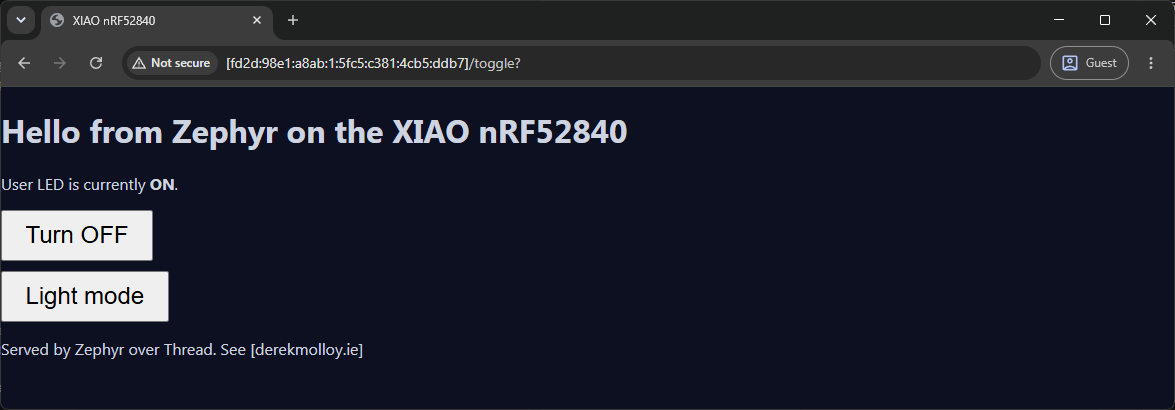
molloyd@ele:~$ curl -g -6 "http://[fd2d:98e1:a8ab:1:5fc5:c381:4cb5:ddb7]/"
<!DOCTYPE html><html data-theme="dark"><head><meta name="viewport" content="width=device-width, initial-scale=1"><title>XIAO nRF52840</title><link rel="stylesheet" href="https://derekmolloy.ie/assets/built/theme.css"></head><body class="dm"><h1>Hello from Zephyr on the XIAO nRF52840</h1><p>User LED is currently <b>OFF</b>.</p><form action="/toggle" method="get"><button type="submit" style="font-size:1.5rem;padding:0.6rem 1.4rem">Turn ON</button></form><form action="/theme" method="get"><button type="submit" style="font-size:1.5rem;padding:0.6rem 1.4rem;margin-top:0.6rem">Light mode</button></form><p>Served by Zephyr over Thread. See [<a href="https://derekmolloy.ie/">derekmolloy.ie</a>]</p></body></html>
The raw website call using curl
You should see the page, with the LED state and the two buttons. Clicking Turn ON drives the LED, Turn OFF clears it, and Light mode / Dark mode flips the theme, each click reloading the page with the new state.
fd2d:98e1:a8ab:1::/64) differs from the one shown during commissioning (fd5c:…) for exactly that reason. The lesson: never hard-code the address — re-read ot ipaddr on the device and use whichever OMR address it currently holds.If the page will not load Reaching a Thread device from a PC depends on IPv6 routing being healthy end to end. Work through it in this order:
- Ping the OMR address from your PC first (as shown above; add
-6on some systems). If the ping times out, it is a network/routing problem, and you should keep going down this list. If the ping succeeds but the browser does not, the network is fine and the fault is the web server or the browser. Isolate them with a direct request:curl -g -6 "http://[<omr-address>]/". If curl returns the HTML, the server works and the browser is at fault (some browsers open speculative pre-connections that a one-client-at-a-time server can stall on. You can try a hard reload or another browser). If curl also fails, the server is not listening: check the serial boot log forHTTP server listening on [::]:80and any error printed above it (LED device not ready,bind() failed). Connection refusedmeans the server is not listening. This is different from a timeout: a fast refusal is a TCP reset, which proves the device is reachable (the stack is up) but nothing is bound to port 80. The usual cause is thatmain()never reached itsaccept()loop. Watch for the trap that a truncated or paste-mangledmain.cstill builds and boots: if the file lost itsmain()(ormain()is present but a broken string literal stopped compilation of an earlier build you never re-flashed), Zephyr links its own empty weakmain, so the board runs happily with no server and no error at all. If you see none of your ownprintk/log lines at boot, suspect this first. Then verify the source is complete (render_pageonce, ends withmain()), rebuild, and confirm you flashed the freshly built.uf2to the correct drive letter.- Confirm you are using the OMR address, not the RLOC or a mesh-local one (see the table above). Only the border-router-advertised prefix is routable from your PC.
- Check the border router is actually routing. On an OTBR:
ot-ctl br stateshould berunning,ot-ctl netdata showshould list the OMR prefix and a route, and the host needsnet.ipv6.conf.all.forwarding=1. These are exactly the points covered in the border-router guide. - Suspect signal and mesh position. A
pingthat simply times out, on a device you know is configured correctly, often just means a weak radio link. The XIAO's onboard PCB antenna is tiny, and if the board sits at the far edge of your mesh the link can be too lossy to carry TCP even when the address is right. Move the XIAO closer to the border router or another Thread router, or add a mains-powered Thread router in between to extend the mesh. Gauge the link on the XIAO withot neighbor tableandot router table(RSSI and LQ In/Out);ot parentalso shows the uplink quality, but only while the node is achild. The clearest sign of all that this is range and not configuration is the node drifting toleaderstate with the…:ff:fe00:fc00anycast address — that means it has split off into its own partition entirely (see theot parentnote in the joining section above).
Conclusion
- The XIAO nRF52840 has no Wi-Fi, so "networked device" here means Thread: a low-power IPv6 mesh that reaches your browser through a border router.
- Zephyr is a full RTOS, not an async runtime. You get pre-emptive threads, devicetree, Kconfig, and a maintained networking stack, at the cost of a heavier build system and manual memory safety.
- The application code is very similar to the Embassy version: open a socket, accept, read, route, render, close. The concurrency happens underneath you in the Thread stack's own threads, rather than in cooperative
.awaitpoints in your own task. - The biggest practical hurdle is not the firmware but the infrastructure: a working Thread border router is a hard prerequisite for the networking half of this project.
In the next guide we will return to this exact board and rebuild the server in Rust, so we can lay all three side by side: Embassy on the ESP32-C3, Zephyr in C on the XIAO, and Rust on Zephyr or bare metal on the same XIAO.
Good luck! 🍀

